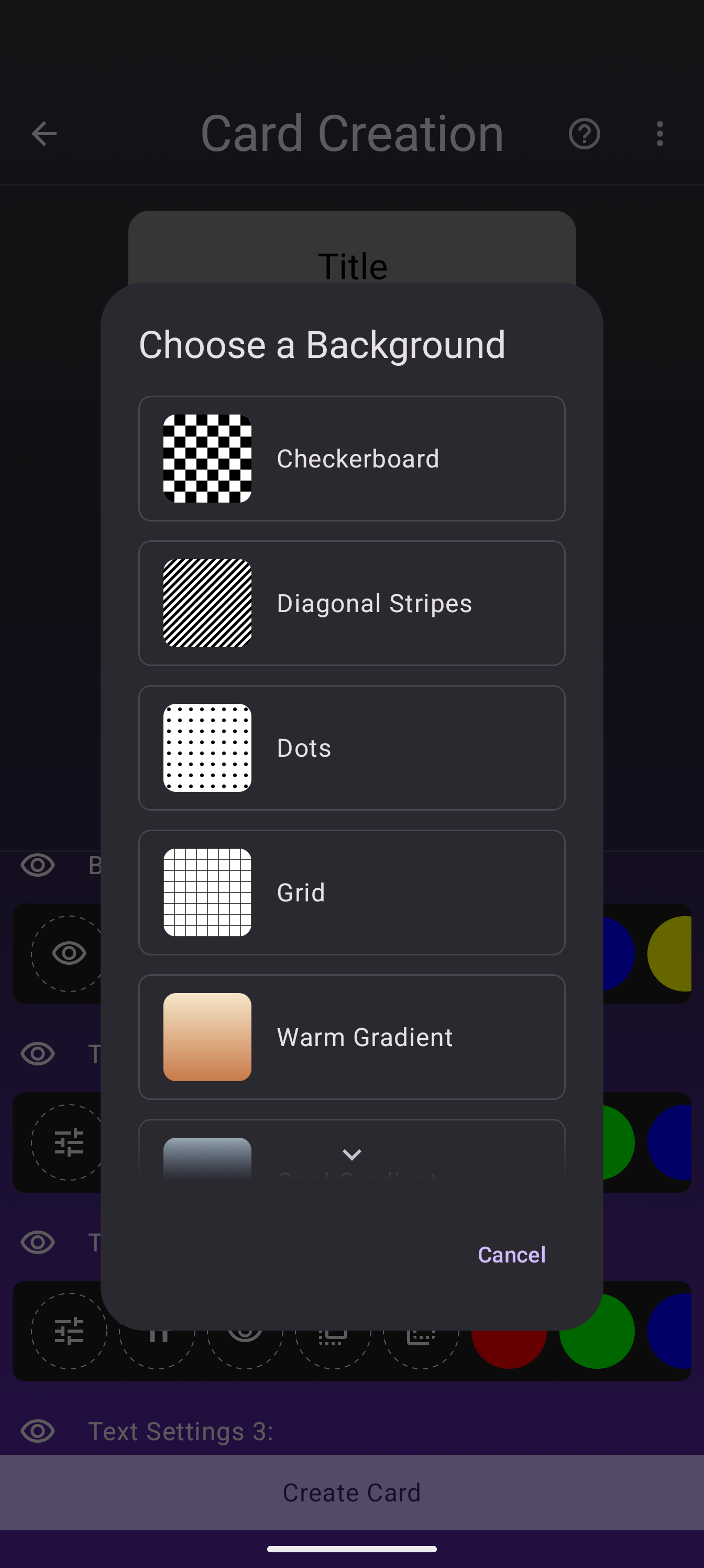
The Card Designer gives you full control over every element of a custom card. Sometimes full control is exactly what you do not want: you just need a decent-looking background behind your title and stats. The 3.9.0 update adds a presets button to the background section with six backgrounds that are one tap away.
The six presets
- Checkerboard, a classic two-tone pattern
- Diagonal stripes
- Dots, a regular polka pattern
- Grid, thin lines at regular intervals
- Warm gradient, cream through terracotta
- Cool gradient, blue and violet tones
How to use them
- Open a deck and tap the plus button, then Design Card.
- Pick a layout (Trading Card is a good start).
- In the settings panel, scroll to Background Color and tap the presets button next to it.
- Tap a preset. The card preview updates immediately.
Here is the trading card layout with the warm gradient applied:
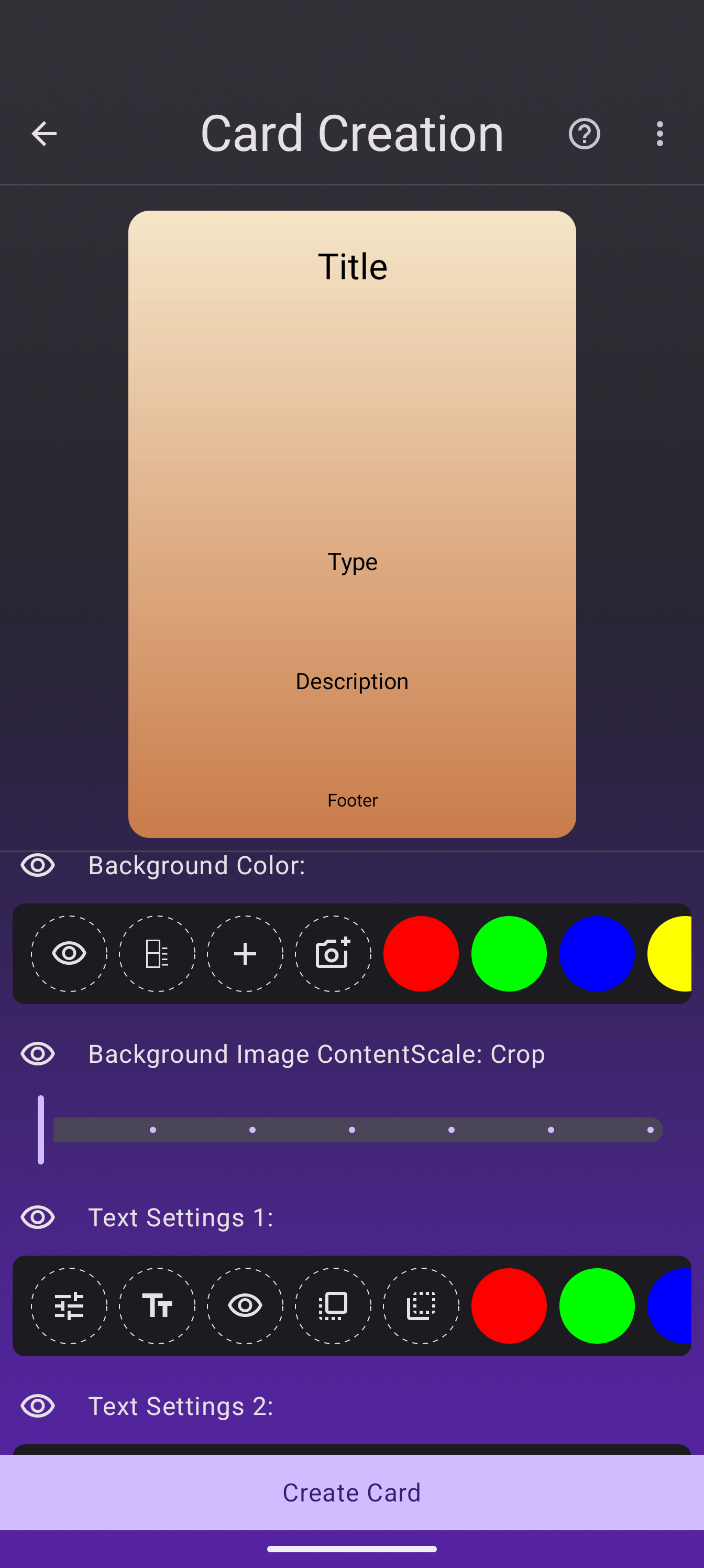
Presets combine with everything else the designer offers: they sit under your text elements, work with every border style, and you can still add your own art on top. If a preset is close but not right, it is a starting point you can keep tuning, not a locked choice.
Why presets
Custom cards live and die by their background. A plain color works, but it reads as unfinished, and building a nice gradient or pattern by hand takes minutes of color picking. The presets cover the classics so your first custom card looks designed before you have tuned anything.
Going further
- Everything else in the designer still applies: fonts, text styles, borders, corner radius.
- Share what you make in the Discord.
