If you read tarot, reversals are half the language. A card upside down means shadowed, blocked, internalized energy, and until now Deck Builder’s tarot decks had no way to show that on the table. Version 3.10.0 adds a dedicated 180 degree reversal so your digital spread reads like a real one.
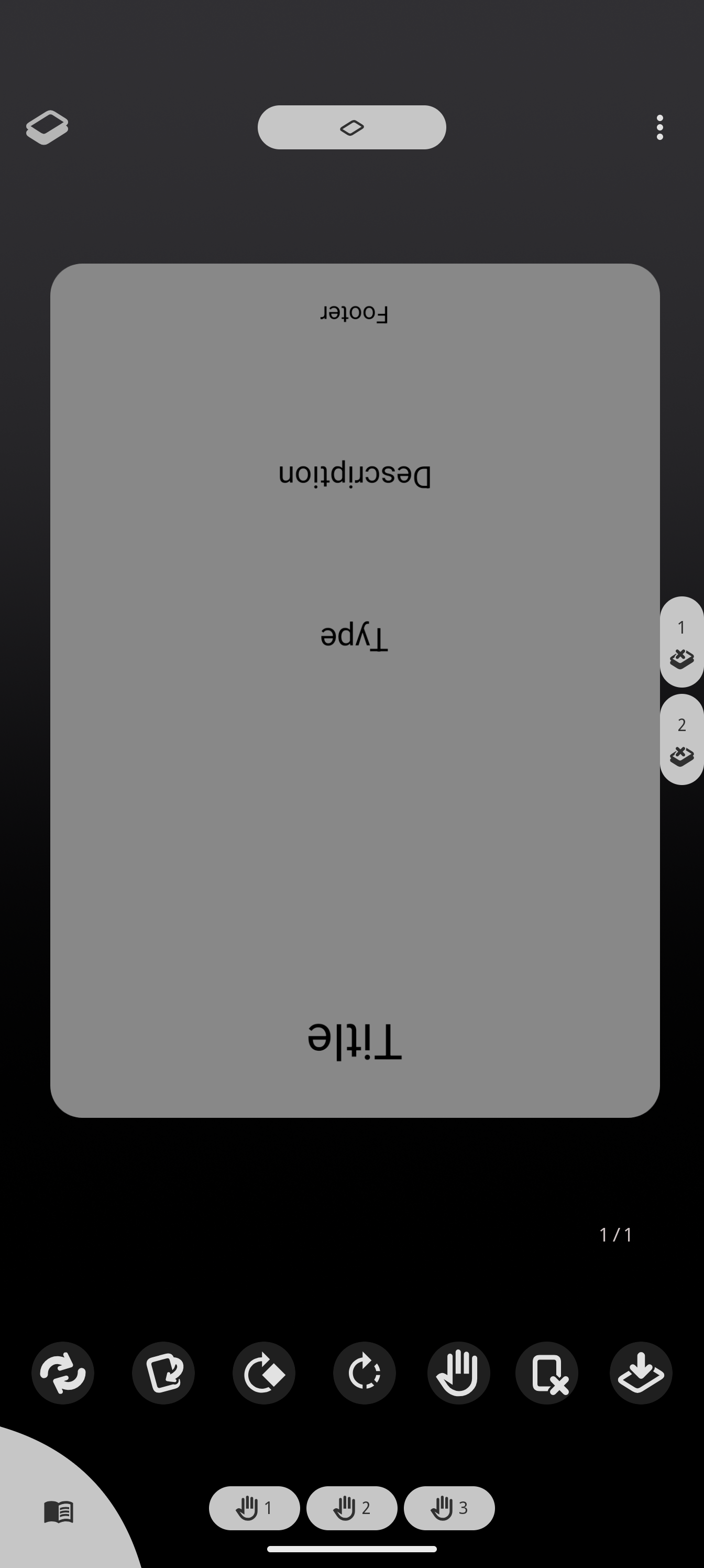
How reversal works
In the simulation, select any card in the in-play area and tap the new Rotate 180° button. The card turns upside down with a flip animation, the same motion as a physical card turning on the table. Tap it again and it comes back upright. The state is part of the game session, so it survives saving, restoring and the session cache.
The per-zone setting
Not every game wants accidental 180 degree flips. Each zone in the deck settings (Draw Pile, Discard Pile, In-Play, Hand) has its own rotate 180 degrees toggle:
- Turn it on for your tarot decks’ in-play area, where reversals belong.
- Leave it off for games that never rotate, like poker.
- It is independent of the existing 90 degree rotation for tapped creatures and sideways cards.
Every setting now also has a plain-language explanation right below it, so you can see what a toggle does before committing.
A quick tarot spread setup
- Create a tarot deck (or download one from the Deck Store).
- Open deck settings and enable rotate 180 degrees for the in-play area.
- Draw your spread into the in-play zone.
- Turn any card with the 180 button as the reading asks for it.
Reversal is free, works on Android and the web app, and is live with 3.10.0. New to Deck Builder? It is a free card deck simulator on Google Play, and your tarot deck works in the browser version too. Join the Discord to share spreads, or support development on Patreon.
