The Deck Store is where Deck Builder players browse and download decks made by the community. In 3.4.0 you can add your own to it: any deck you build, including ones you design card by card in the Card Designer, can be published straight from the app so other players can find and play it.
Step 1: Browse the Deck Store
Open the Store tab to see what is already there: themed decks, custom art, and full games, each with its own cover, author, card count, and download count.
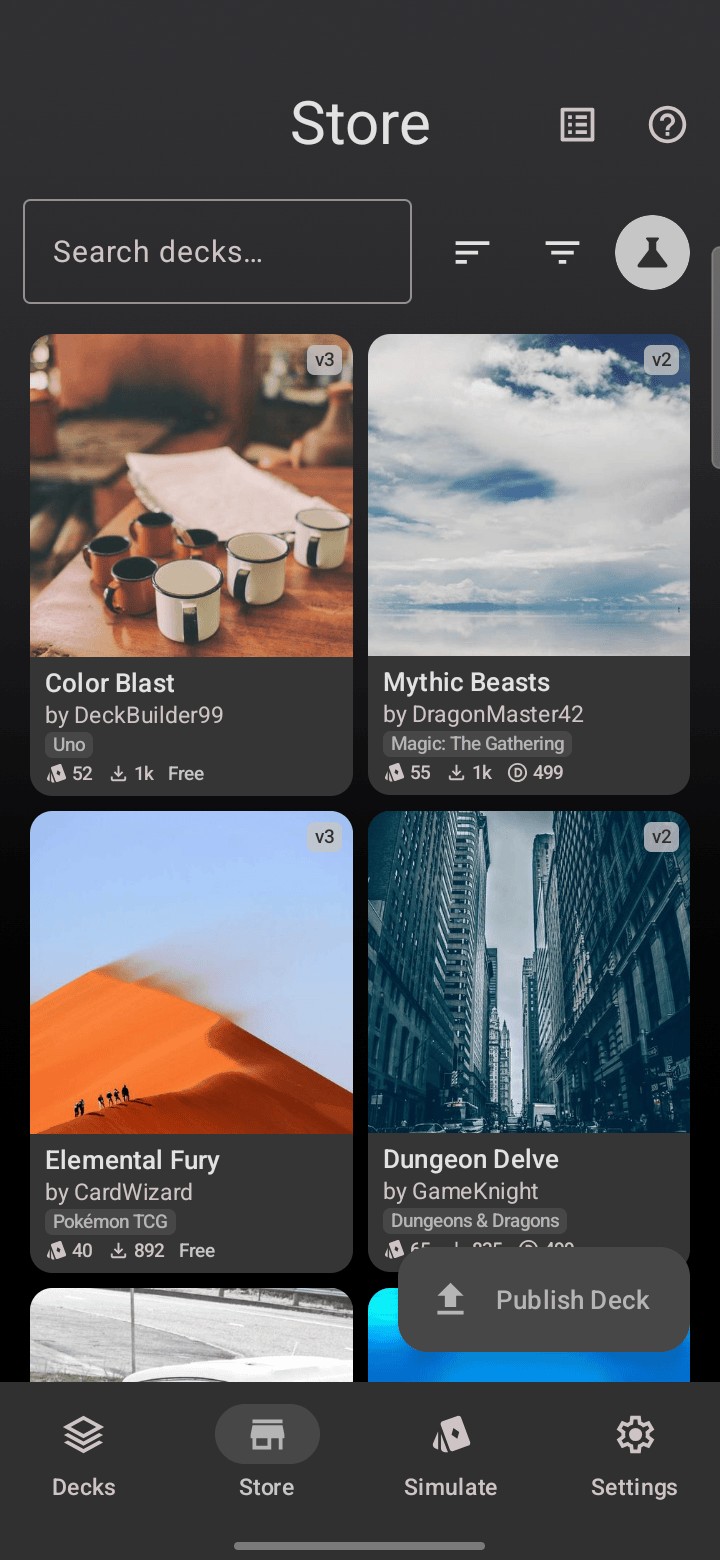
Take a look around first. Seeing how other decks present themselves, with a clear cover, a good description, and sensible tags, is the quickest way to make yours easy to find.
Step 2: Start publishing
When you are ready, tap Publish Deck and pick the deck you want to share. Deck Builder walks you through a short Deck Details form.
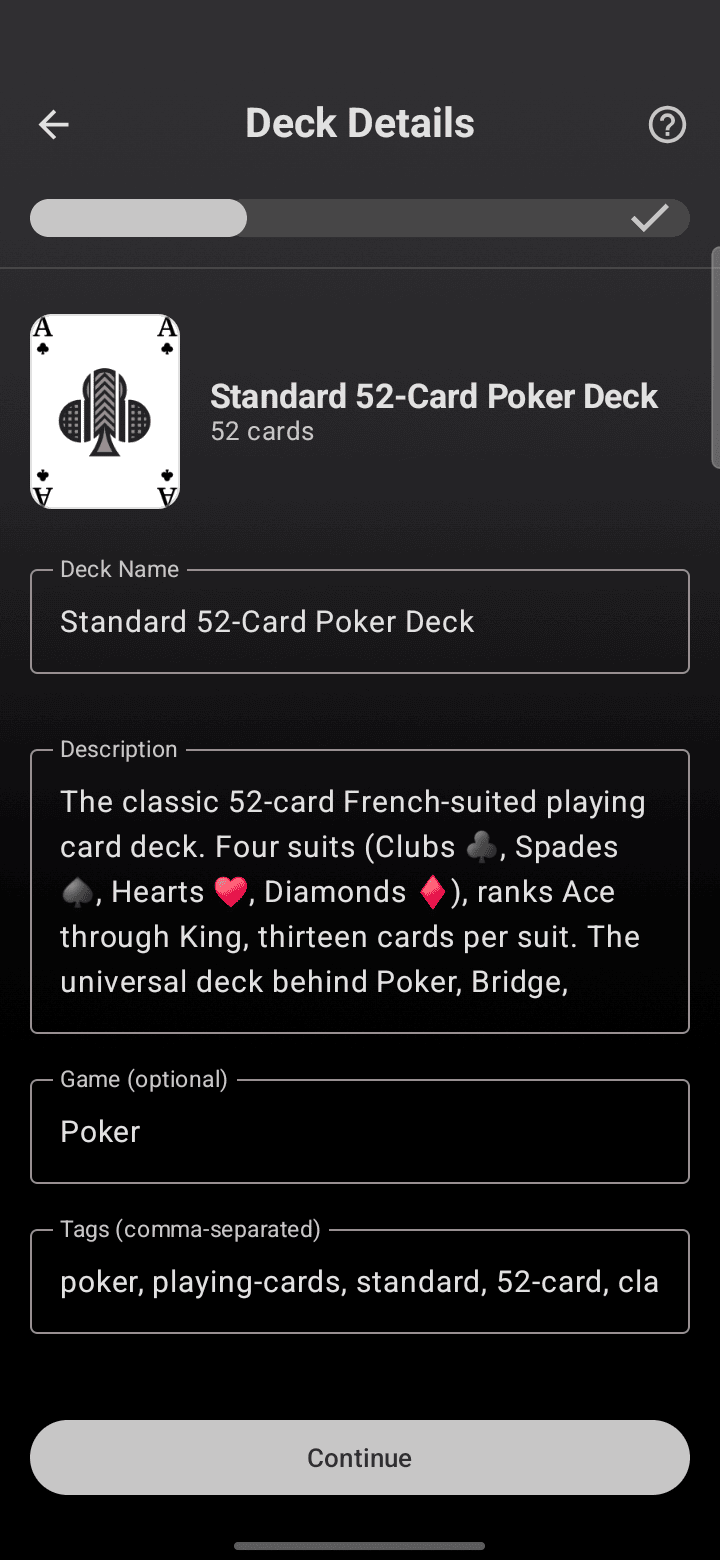
Fill in the details that help players decide to download it:
- Deck name and a clear description of what the deck is and how to play it.
- The game it is for (optional), for example Poker or your own game’s name.
- Tags, comma-separated, so the deck shows up in searches.
Then continue through the remaining steps to submit it. Published decks go through a quick review before they appear publicly in the store.
Publishing Card Designer decks
The best part of 3.4.0 is that decks you create in the Card Designer, with your own layouts, art, and card backs, are no longer stuck on your device. They publish through the exact same flow, so a deck you designed from scratch can reach every Deck Builder player.
Tips for a deck people will download
- Write a real description. One or two sentences on the theme and how it plays goes a long way.
- Tag it well. Think about what someone would type to find a deck like yours.
- Give it a strong first card or cover. It is the first thing players see in the grid.
Deck Store publishing arrived in Deck Builder 3.4.0. See the full list of changes in What’s new in Deck Builder 3.4.0, and if you would rather print your deck than publish it, here is how to turn any deck into print-ready cards.
