A deck you built or scanned on your phone does not have to stay on your phone. Deck Builder 3.4.0 adds two new ways to take a deck off the screen: a print-ready PDF you can send straight to a printer, and an editable bundle you can open in a desktop design tool. Both live in the same export menu, so it is one tap to get from a finished deck to something you can print or polish.
Open the export menu
Open a deck, then open its export options. Deck Builder offers a few ways to send a deck out into the world:
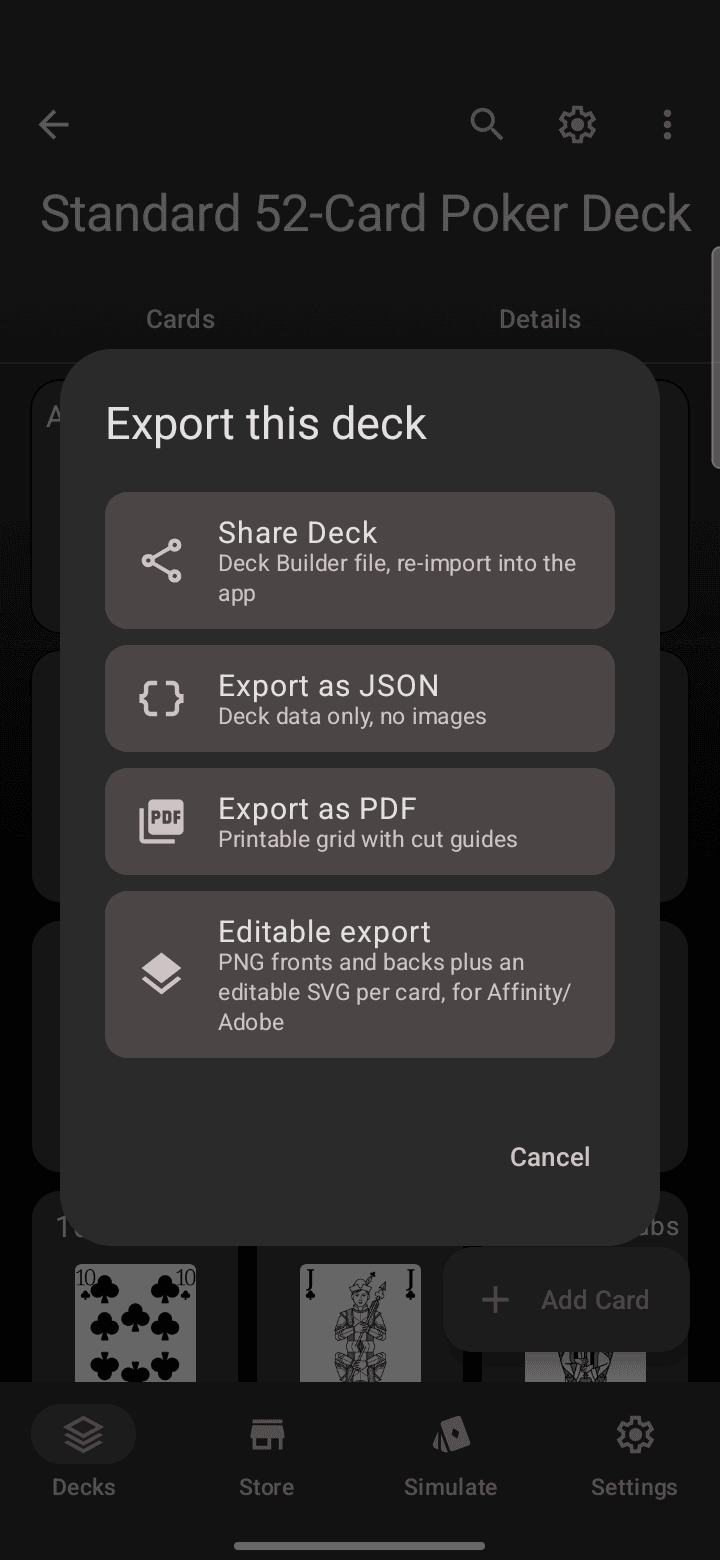
- Share Deck writes a Deck Builder file you can re-import into the app (great for backups and sharing with other Deck Builder users).
- Export as JSON saves the deck data only, no images.
- Export as PDF builds a printable grid with cut guides.
- Editable export gives you PNG fronts and backs plus an editable SVG per card, for Affinity or Adobe.
Option 1: Print-ready PDF
Choose Export as PDF and Deck Builder lays your whole deck out at real card size, so what comes off the printer is the size of an actual playing card.
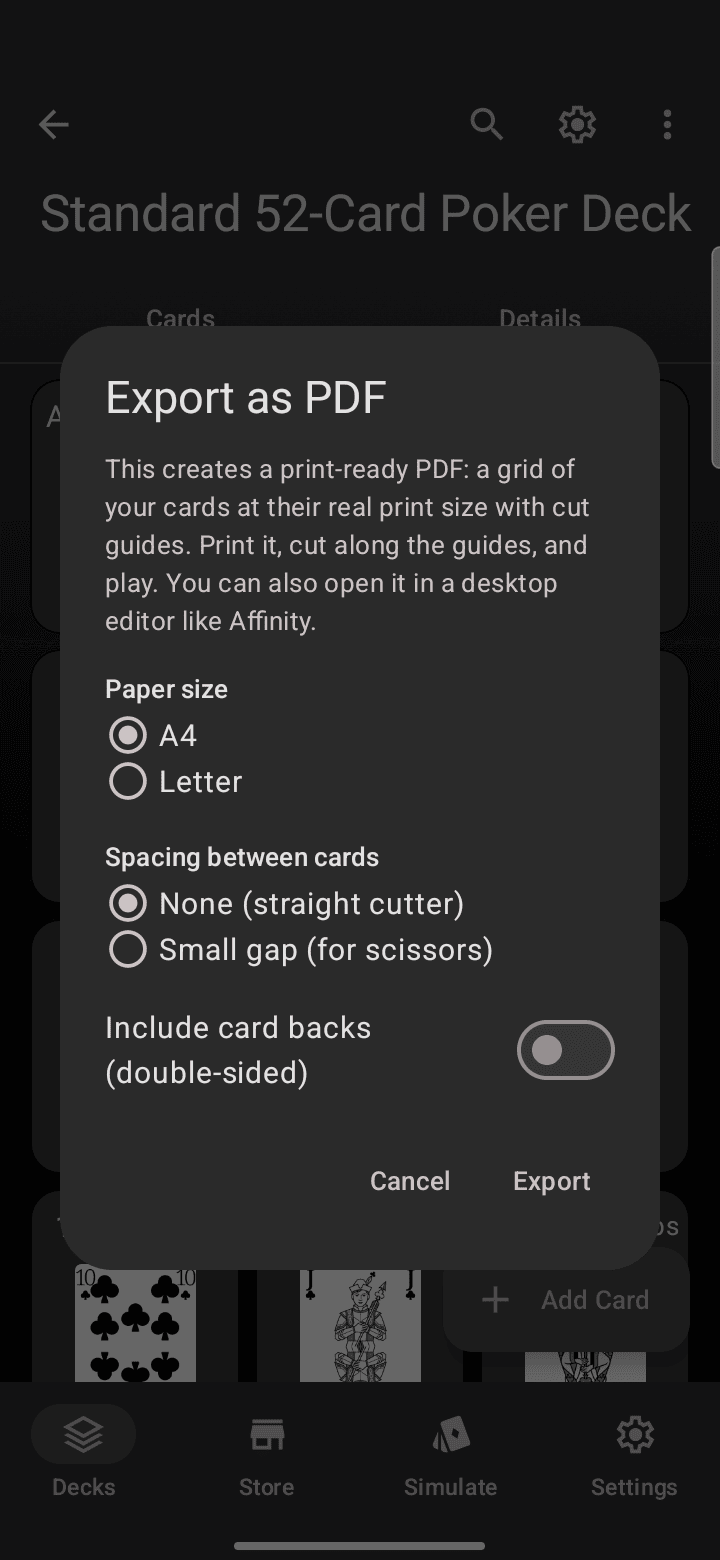
A few choices tune it for your printer and your cutting tools:
- Paper size: A4 or Letter.
- Spacing between cards: pick None for a guillotine or straight cutter, or a small gap if you are cutting with scissors.
- Include card backs for double-sided printing, so long-edge duplex lines the backs up with the fronts.
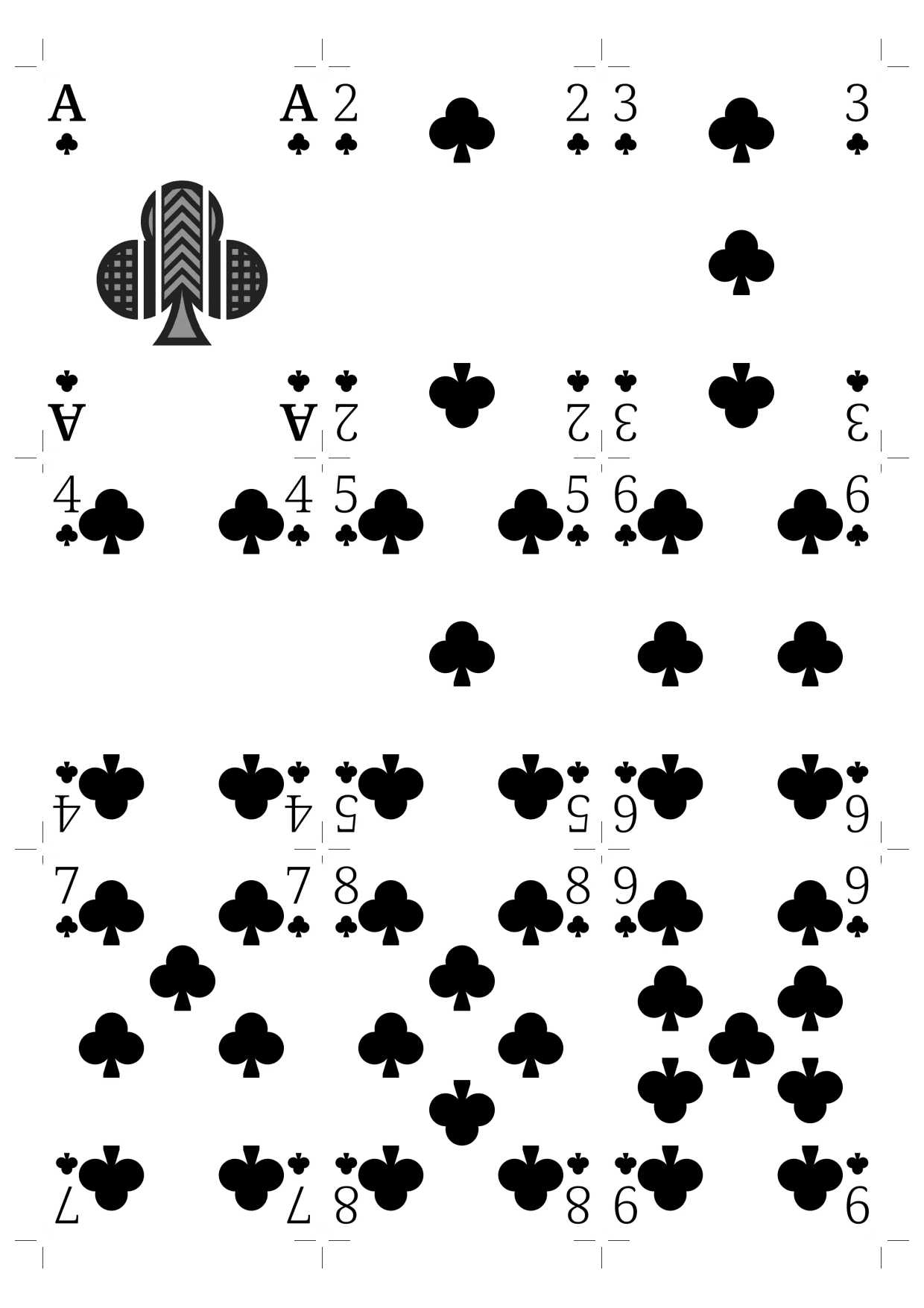
The result is a tidy grid with crop marks in the corners of every card. Print at 100%, cut along the guides, and you have a playable deck.
For the full workflow, including calibration and sleeving tips, see how to playtest your print-and-play game before you print it.
Option 2: Editable bundle for Affinity or Adobe
If you want to refine the art on a big screen, choose Editable export. Instead of a flat PDF, you get, for every card:
- a PNG front and a PNG back at print resolution, and
- an editable SVG you can open and tweak in Affinity Designer, Adobe Illustrator, or any vector editor.
Polish the layout, export it back out, and bring it into Deck Builder again with import. This makes Deck Builder the start of your design pipeline rather than a dead end: rough a card out on your phone, perfect it on your desktop, then print it.
Which one should I use?
- Just want to print and play? Use Export as PDF. It is the fastest path from deck to table.
- Want to keep editing the art? Use Editable export and open the SVGs in your design tool.
- Sharing with another Deck Builder user or backing up? Use Share Deck.
Print-ready export shipped in Deck Builder 3.4.0. See everything new in What’s new in Deck Builder 3.4.0, and if you build your own decks, learn how to publish them to the Deck Store so other players can find them.
