Once you have more than a handful of decks, you will want to organize them. A Deck Collection groups decks together and, more importantly, lets you draw from all of them in a single session while each deck keeps its own rules and settings. Group by game, by category, or any way you like.
Where collections live
Open Deck Management (the decks screen) and tap the Collections tab at the top, next to All Decks.
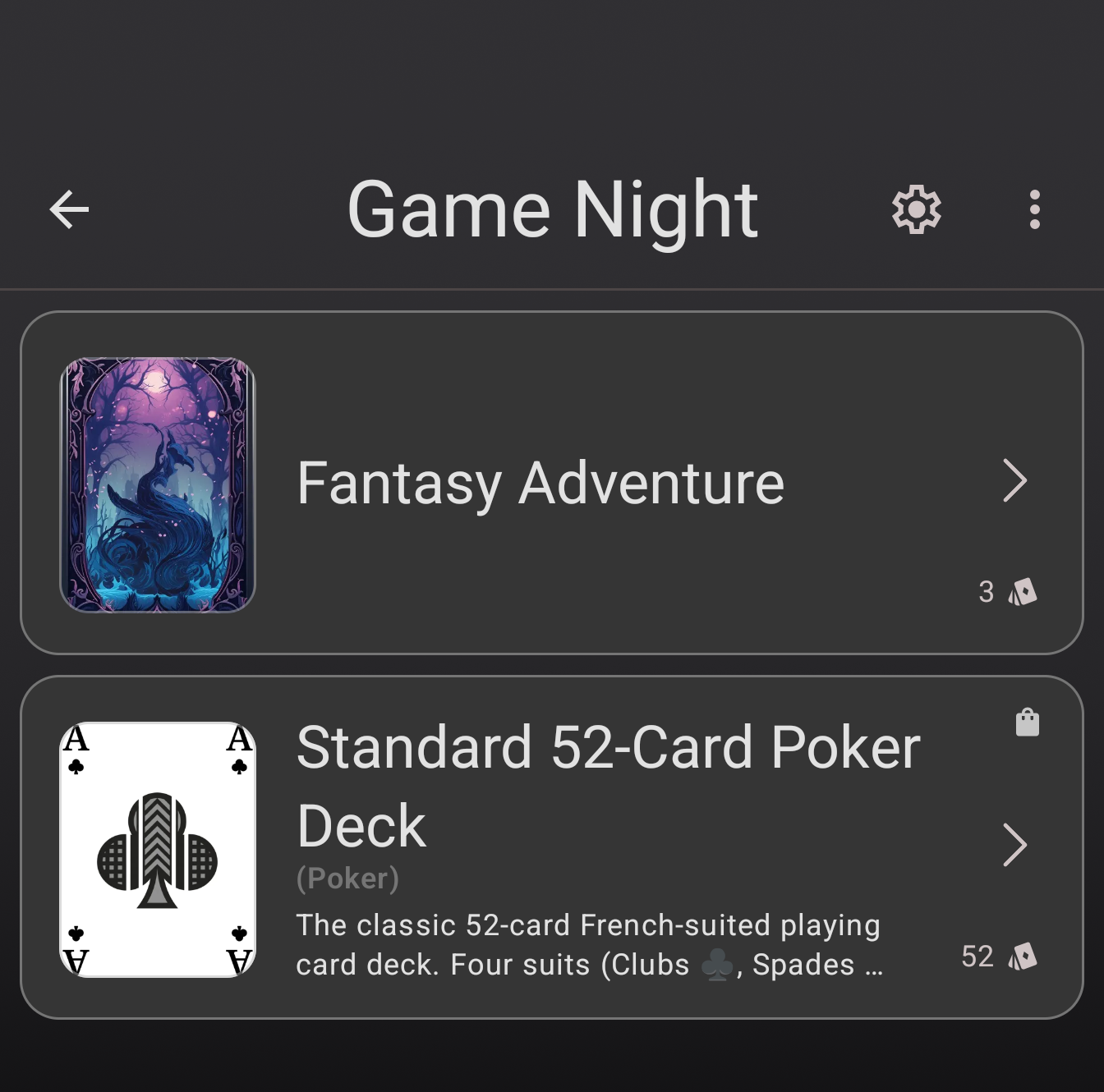
Create a collection
On the Collections tab, tap Create deck collection in the bottom-right, type a name (for example “Game Night”), and tap Create deck collection again. That is all a collection needs to start, just a name.
Add decks to it
Open the new collection and tap Add Deck, then Add existing deck. Tap each deck you want to include, then tap Submit. You can also add a deck from the other direction: open a deck, tap its ⋮ menu, and choose Edit Collections to toggle which collections it belongs to.
Removing a deck works the same way: re-open Add decks and un-tap it, or un-check the collection in Edit Collections.
Draw from the whole collection
This is the point of a collection. Tap the collection to start a session that draws from every deck inside it at once, and each deck still applies its own shuffle and draw rules. Great for a game night where you bounce between several decks.
Manage a collection
From inside a collection you can also:
- Set a cover image so it is easy to recognize.
- Rename it.
- Reorder collections by dragging them on the Collections tab.
- Delete it (only when it is empty, so you never lose decks by accident).
Your decks are never copied into a collection, they are just grouped, so a deck can live in several collections at once and editing it updates it everywhere. Update to the latest Deck Builder from Google Play, and see every way to add cards to a deck to fill those decks first.
