The card back is what players see on the face-down side of a card: on the draw pile, in hand, on the discard pile, and mid-flip. Deck Builder lets you replace the standard back with your own, at two levels.
Two kinds of card back
- A deck default back shows on every card in the deck that does not have its own back.
- A per-card back overrides the default for that one card, so you can flag a special card by its reverse alone.
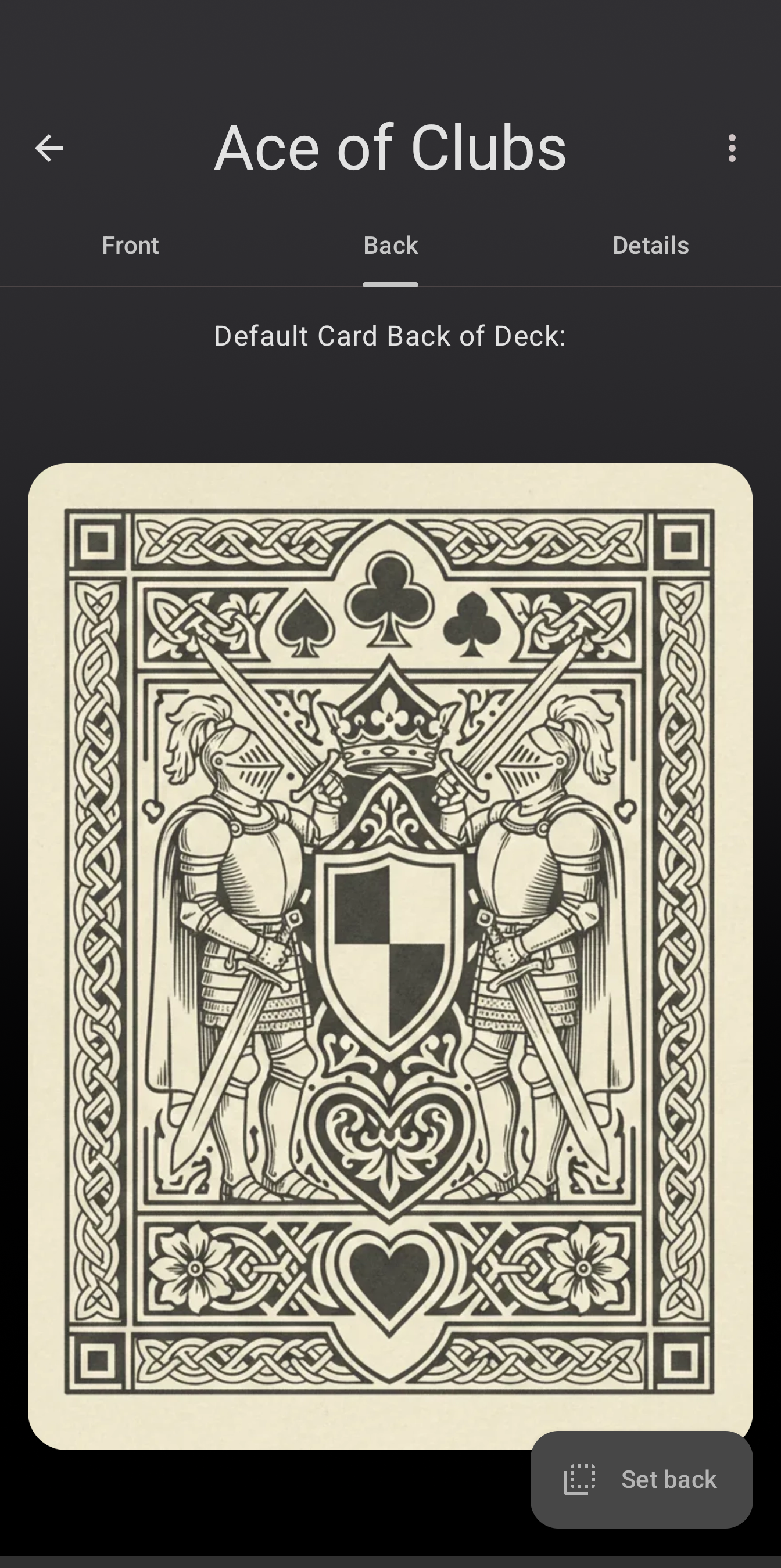
Set a card’s back
Open a card and switch to the Back tab. Tap Set back and choose where the image comes from:
- Design Card to build a back in the Card Designer.
- Select from Gallery or Files to use an image you already have.
- Scan Image to capture a real card back with the camera.
Make it the whole deck’s back (one tap)
Right after you set a single card’s back, Deck Builder asks “Set as deck default?”. Tap Set as default and that image becomes the back for every card in the deck that does not have its own. It is the fastest way to reskin an entire deck. Tap Not now to keep the back on just that one card.
Set the deck default directly
You can also go straight to the deck-wide setting: open the deck, go to its Details tab, tap the edit (pencil) icon, and under Visual Assets choose Default Card Back. Pick an existing card from the deck, design one, or load an image.
Undo it
Changed your mind? On a card’s Back tab, Restore Default removes that card’s custom back and it falls back to the deck default (and then to the standard Deck Builder back).
Update to the latest Deck Builder from Google Play to try it, and see every way to add cards to a deck while you are designing.
